Switching from Stocky? Bring everything with you.
Stocky shuts down on August 31, 2026. Paste in your Stocky API key and we import everything we can, automatically. Preview before you save, keep your live Shopify stock untouched, and re-run without duplicates.
 Install on Shopify
Guided walkthrough · 14-day free trial · No contracts · Cancel anytime
1.1M orders processed · 140,000+ SKUs tracked · 5M+ Shopify events synced
It all starts with one API key.
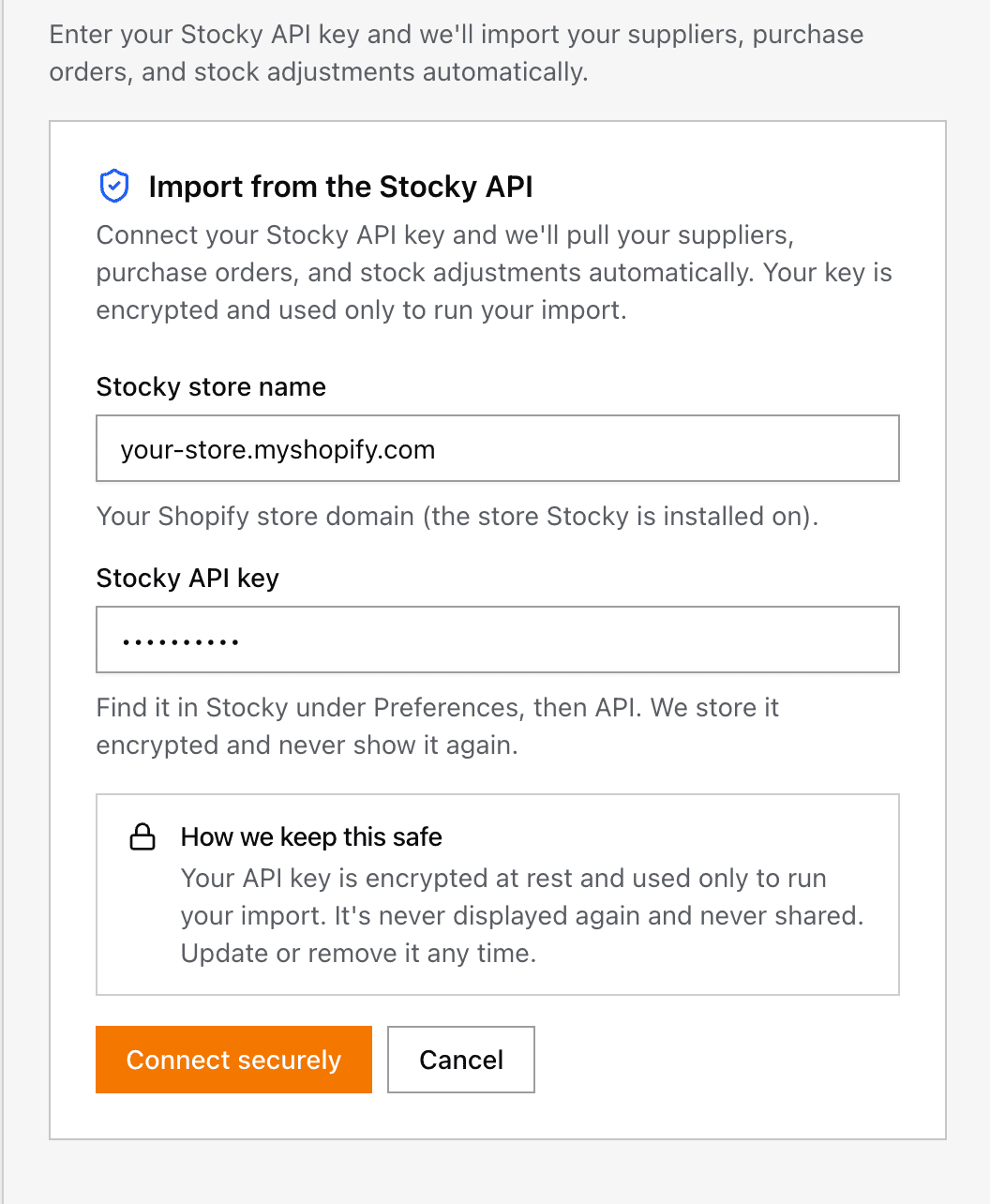
Paste in your Stocky API key and we automatically import everything the Stocky API exposes. For the few records it does not, a quick CSV fills the gap.
- CSV only for what the API can't reach
- We map your records for you
- Your key is encrypted and never shown back
- Preview, no duplicates, live stock untouched
Bring your whole Stocky history
The records that matter come across, so your operating history comes with you.
Purchase orders
Your open and historical POs, with line items, suppliers, dates, and costs.
Stocktakes
Your inventory counts, kept as historical records.
Suppliers
Full vendor records: contacts, addresses, payment terms, and notes.
Stock adjustments
Manual corrections like damage, shrinkage, and found stock, with their reasons.
Good to know: your products and variants come from your Shopify sync, and transfers stay in Shopify, so neither needs importing here.
You keep your data and get a serious upgrade
Organizely does what Stocky does, plus a lot it can't.
 Organizely
Count against committed and reserved stock, not just on-hand, so your counts reconcile instead of fighting open orders.
Forecast demand and get reorder points and quantities, so you buy the right amount at the right time.
Bills of materials and assemblies that consume components and roll their cost into your finished goods. Available on Pro and Scale plans.
Plan production as work orders that consume components, track progress, and cost finished goods accurately. Available on Pro and Scale plans.
Oppy, your built-in assistant, answers questions about your inventory, orders, and reports in plain English.
Track stock down to the bin with a real WMS, not a single lump count per location.
Build rules that react to inventory and order events, no scripts, to auto-tag, alert, reorder, and more.
No Shopify POS Pro requirement, so you run Organizely on the plan you already have.
Uploading a CSV, step by step
For the records the API does not cover. No scripts, no developers.
Export from Stocky
Download your records from Stocky as CSV files, one file per record type.
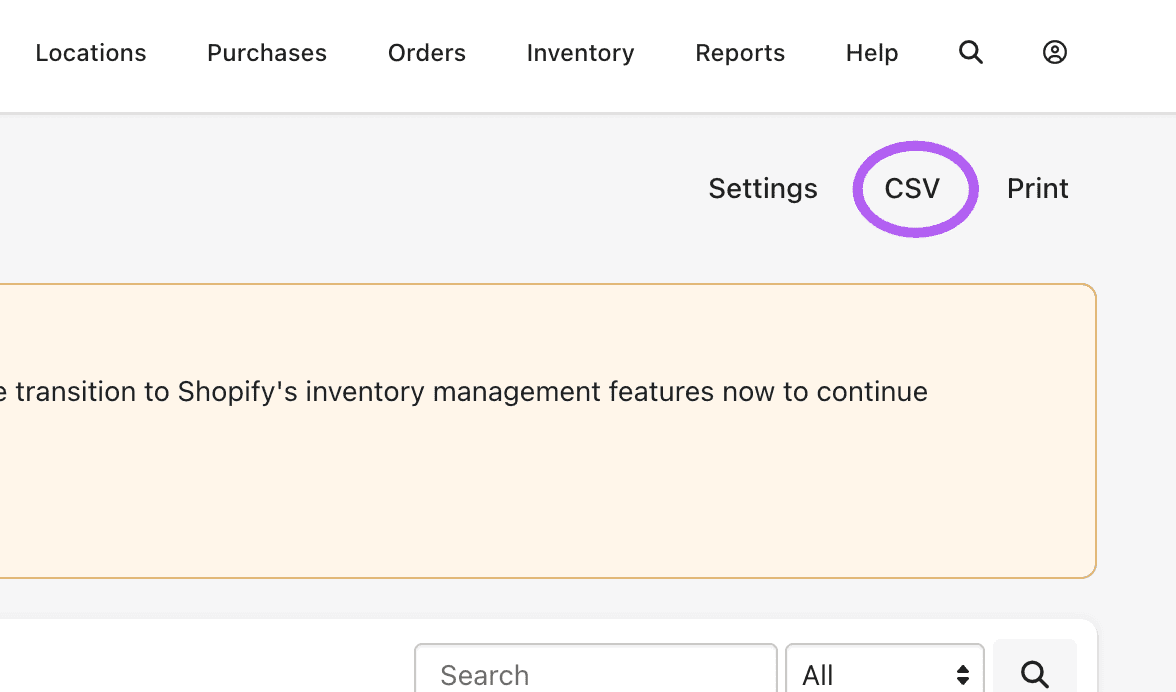
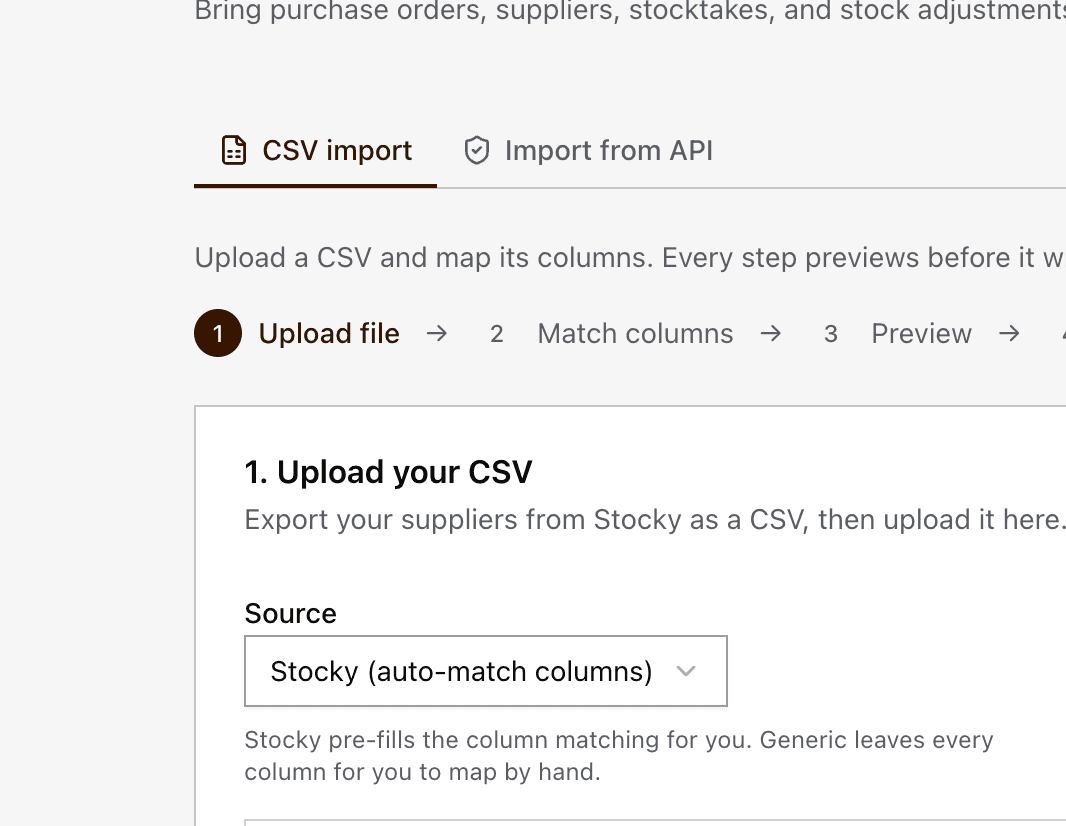
Upload your file
Open the importer, choose what you are importing, and drop in your CSV. Nothing is saved yet.
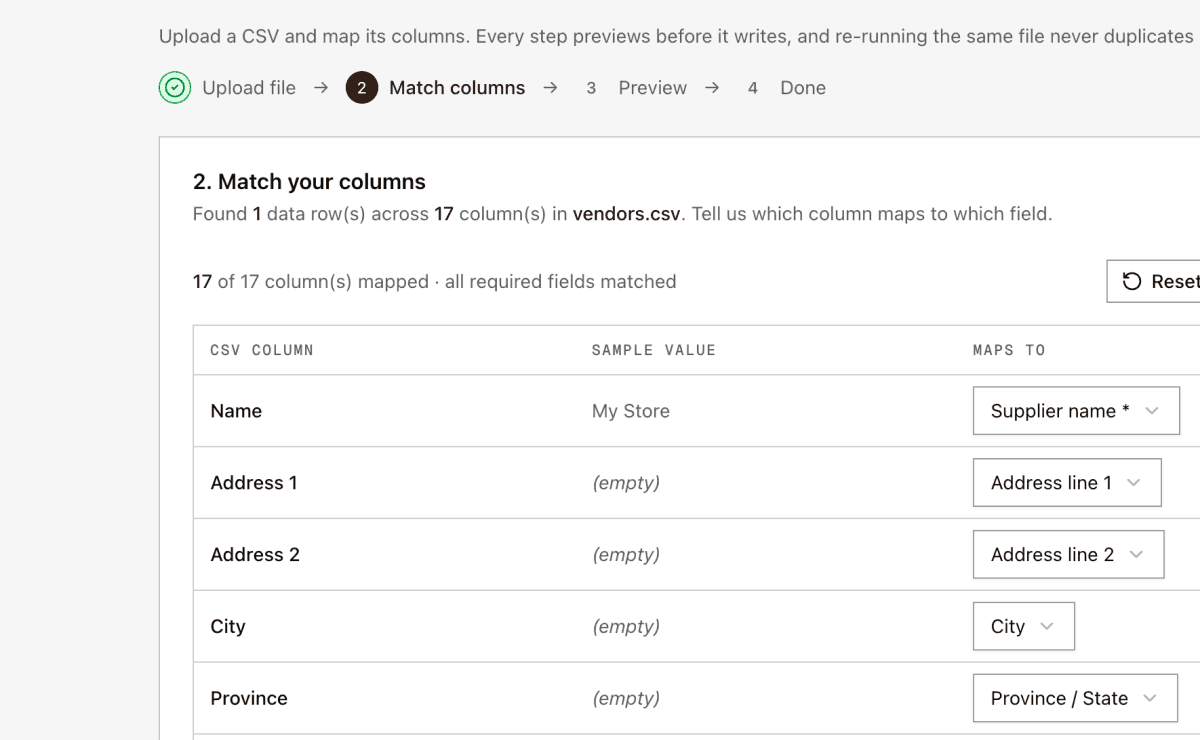
We match your columns
Organizely recognizes Stocky's columns and matches them for you. Change any match in one click.
Preview, then import
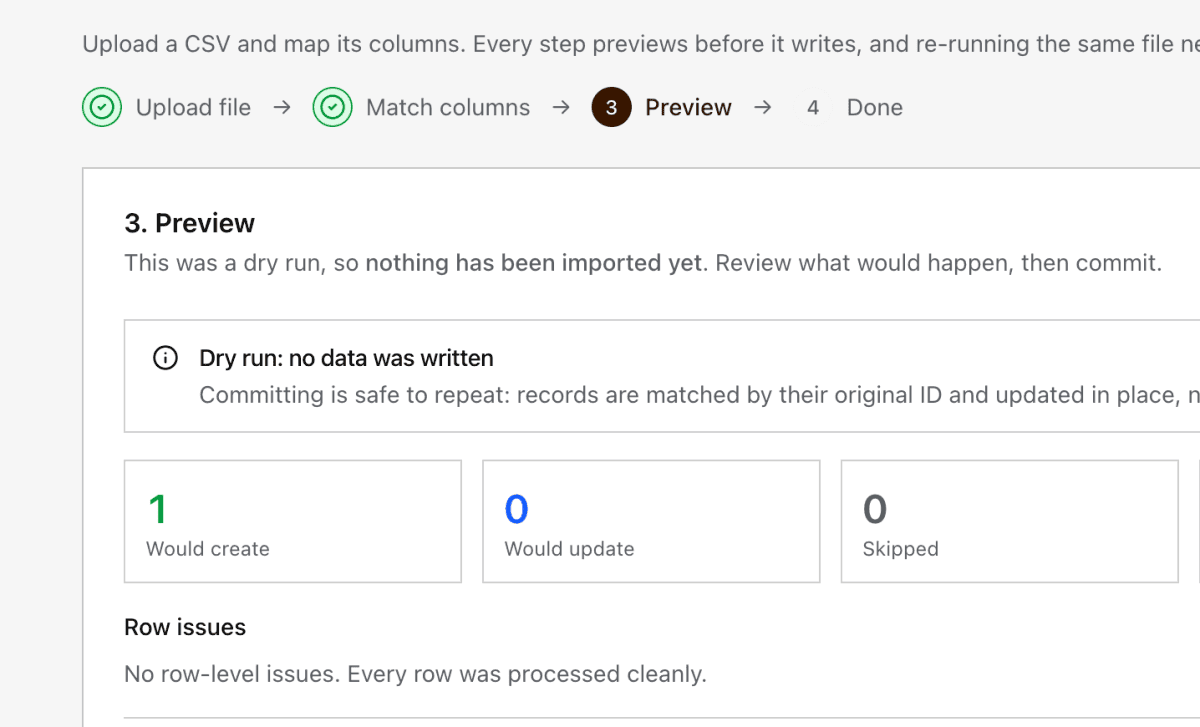
Preview exactly what will happen, with zero changes. Looks right? Commit, and it imports in the background.
Built so you can migrate without holding your breath
Here is what keeps your data safe.
Preview before anything saves
Every import starts with a dry run. See the exact result before a single record is written.
Re-run any time, no duplicates
Re-running updates the same records instead of creating copies, so you can fix and re-import freely.
Your live stock stays put
Imported counts and adjustments come in as history, so they never change your live Shopify stock.
Guided column matching
The importer knows Stocky's exports and suggests the right matches, so you never start from a blank page.
Handles real-world files
Accented names and messy exports are handled, with clear warnings when something needs a look.
Nothing slips through quietly
If a line cannot be matched yet, the importer tells you exactly which ones, so you can sync and re-import.
API first, CSV for the rest
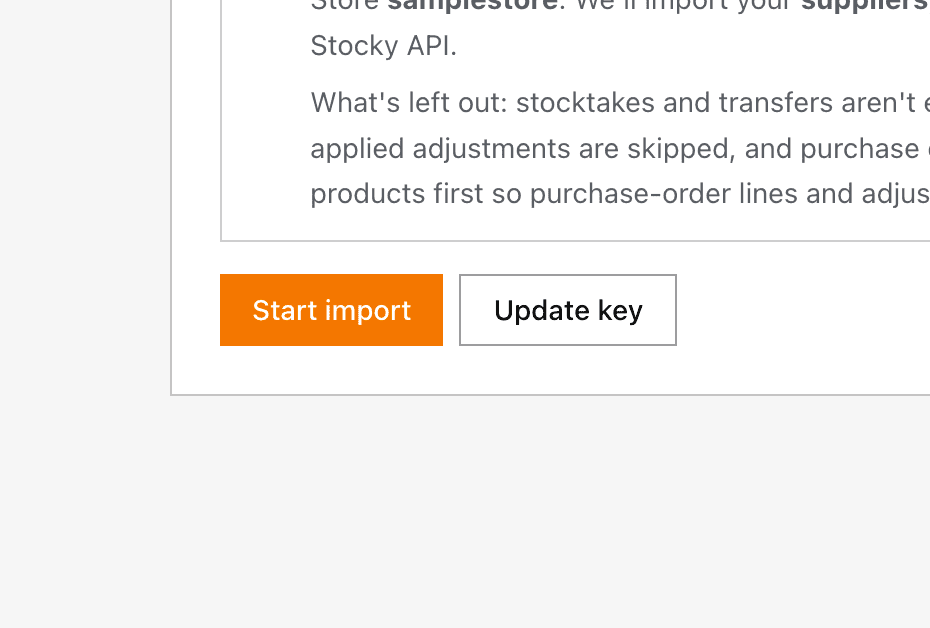
Your API key brings over everything the Stocky API exposes. For anything it does not, upload a CSV.
Import from API
Paste your Stocky API key and Organizely imports everything the Stocky API exposes, automatically. No files, no column matching.
- Just paste your Stocky API key
- Imports everything the API exposes
- Your key is encrypted and never shown back
Fill the gaps with CSV
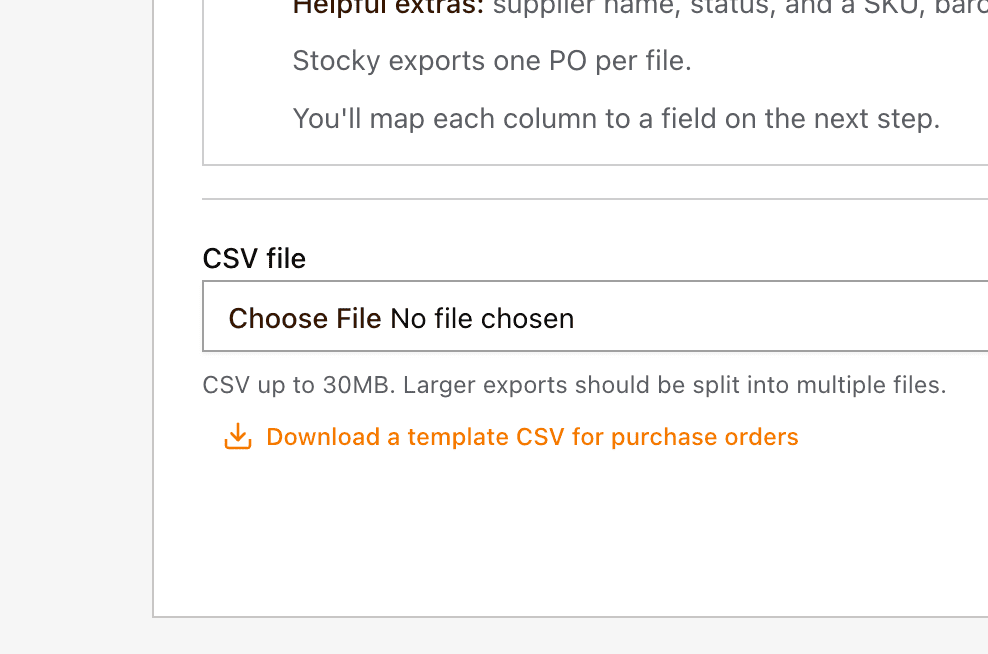
Some records are not available through the API. Export those as CSV and bring them in with the guided wizard.
- Step-by-step wizard
- Auto-matched Stocky columns
- Preview before every import
Migration questions, answered
The things merchants ask before they switch.
Will importing create duplicates?
No. Each record is matched by its original identifier, so re-importing the same file updates the existing records instead of duplicating them. You can run an import as many times as you need.
Will this change my current Shopify stock levels?
No. Stocktakes, transfers, and adjustments are imported as historical records. They preserve your history without touching your live on-hand quantities, which stay in sync with Shopify.
What if some products are not in Organizely yet?
Lines that cannot be matched to a product are reported clearly, and the record still imports with the rest of its lines. Finish syncing your products from Shopify, then re-import the same file to fill in the missing lines.
What file format do I need?
A CSV file, which is a spreadsheet saved in a simple comma format. You can export CSVs from Stocky, or use Save As (or Download as) CSV in Excel, Numbers, or Google Sheets.
How long does a migration take?
Most merchants are done in an afternoon. Smaller exports import in minutes. Larger ones run in the background while you keep working, and the importer shows progress and a final report.
Is there a hands-off way to do this?
Yes. Choose Import from API, paste your Stocky API key, and Organizely imports everything it can for you, with no files to export and no columns to match.
Is my Stocky API key safe?
Yes. Your key is encrypted at rest and is never shown back to anyone. It is used only to read your records from Stocky during the import.
What does Organizely cost?
Every plan starts with a 14-day free trial. There are no contracts, and you can cancel anytime. Manufacturing features like bills of materials and work orders are included on Pro and Scale plans. See plans and pricing.
Ready to leave Stocky behind?
Stocky shuts down August 31, 2026. Your history does not have to. We will help you make the switch.
Guided walkthrough · 14-day free trial · No contracts · Cancel anytime